






























Key Takeaways
- Boomi Connect provides AWS Quick with a single governed MCP gateway to securely connect enterprise systems.
- Easily convert Boomi integration processes into tailored, fast-response AI tools optimized for agentic workflows.
- Reuse established connections, business logic, and security rules without building custom integrations from scratch.
The addition of Boomi Connect to the Boomi Enterprise Platform provides AWS Quick and other AI solutions with one centralized, governed MCP gateway to the applications your business runs on.
Standard application operations answer many questions, but the most valuable questions are often specific to your business: “Where is this order, and when will it actually ship?” depends on your order rules, your carriers, and your definition of “shipped.” Answering questions like that takes a tool built for the purpose.
In this post, we show how to build bespoke AI tools as Boomi integration processes and publish them to AWS Quick through the Boomi Integration connector. You build on the connectors, connections, and governance you already run in Boomi, and you design each process specifically to be called by an AI assistant.
Why Build Bespoke Tools in Boomi
Most existing integration processes weren’t designed to be AI tools. Many are scheduled batch synchronizations that move large volumes of records between systems overnight. An AI assistant needs something different: a fast, narrow, request-and-response operation that answers one question or executes one action well.
Building those tools in Boomi has practical advantages:
- Reuse the hard parts. Connections, credentials, and data mappings to your systems of record already exist in Boomi. A new tool process composes them rather than starting over.
- Encode your business logic. A tool can combine several systems and apply your rules, such as which order statuses count as delayed, before returning a result.
- Keep one governance model. Tools are published through Boomi Connect, so the same identity, curation, and auditing controls from the gateway apply.
- Use the skills your team has. Integration developers build tools with the same platform they use every day.
| Function | Bespoke Tool | What It Combines |
| Customer service | Get Order Status | Order in NetSuite, tracking from the carrier, your ship-date rules |
| Finance | Find At-Risk Receivables | Open invoices, payment history, your credit thresholds |
| HR | Check New Hire Readiness | HR record, IT provisioning, equipment status |
| Supply chain | Check Stock Coverage | Inventory, open purchase orders, your safety-stock rules |
Solution Overview
The solution has three parts:
- A Boomi integration process designed as a tool. It can accept a small, typed input, call the systems it needs, apply business logic, and return a concise structured result. Asynchronous processes operate in a fire-and-forget mode.
- The Boomi Integration connector (Early Access) publishes deployed processes as MCP tools through Boomi Connect, along with a describe_process tool that tells the client what each process does.
- The AWS Quick Model Context Protocol connector discovers the tools and calls them to answer questions and take actions.
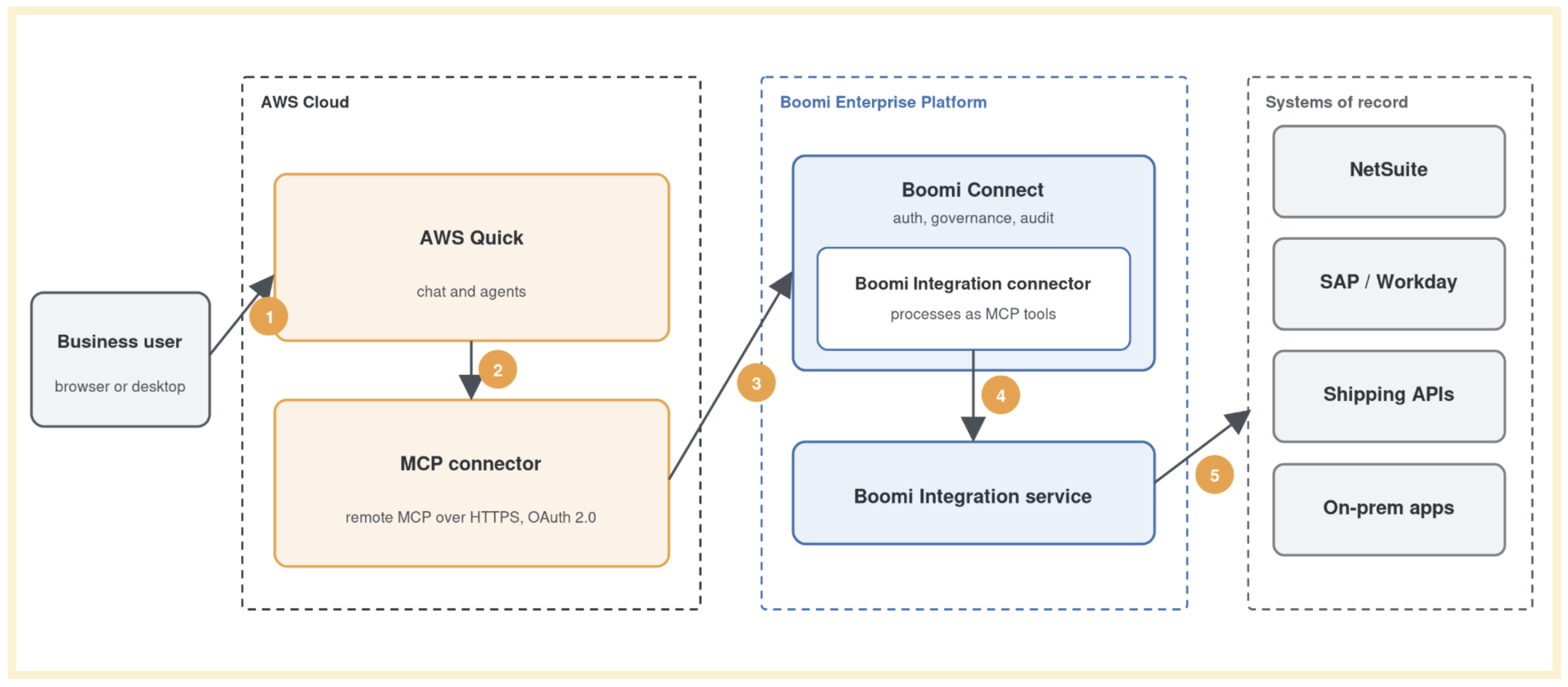
Figure 1: AWS Quick and Boomi Connect solution architecture
The workflow consists of the following steps:
- A user (you) asks AWS Quick a question.
- AWS Quick determines that the Get Order Status tool can help and calls it through the MCP connector, passing the user’s OAuth token.
- Boomi Connect authenticates you, applies governance policies, and logs the call.
- The Boomi Integration connector executes the corresponding process, which queries NetSuite, invokes a carrier tracking API and applies your ship-date rules.
- The process returns a structured result that AWS Quick uses in its answer.
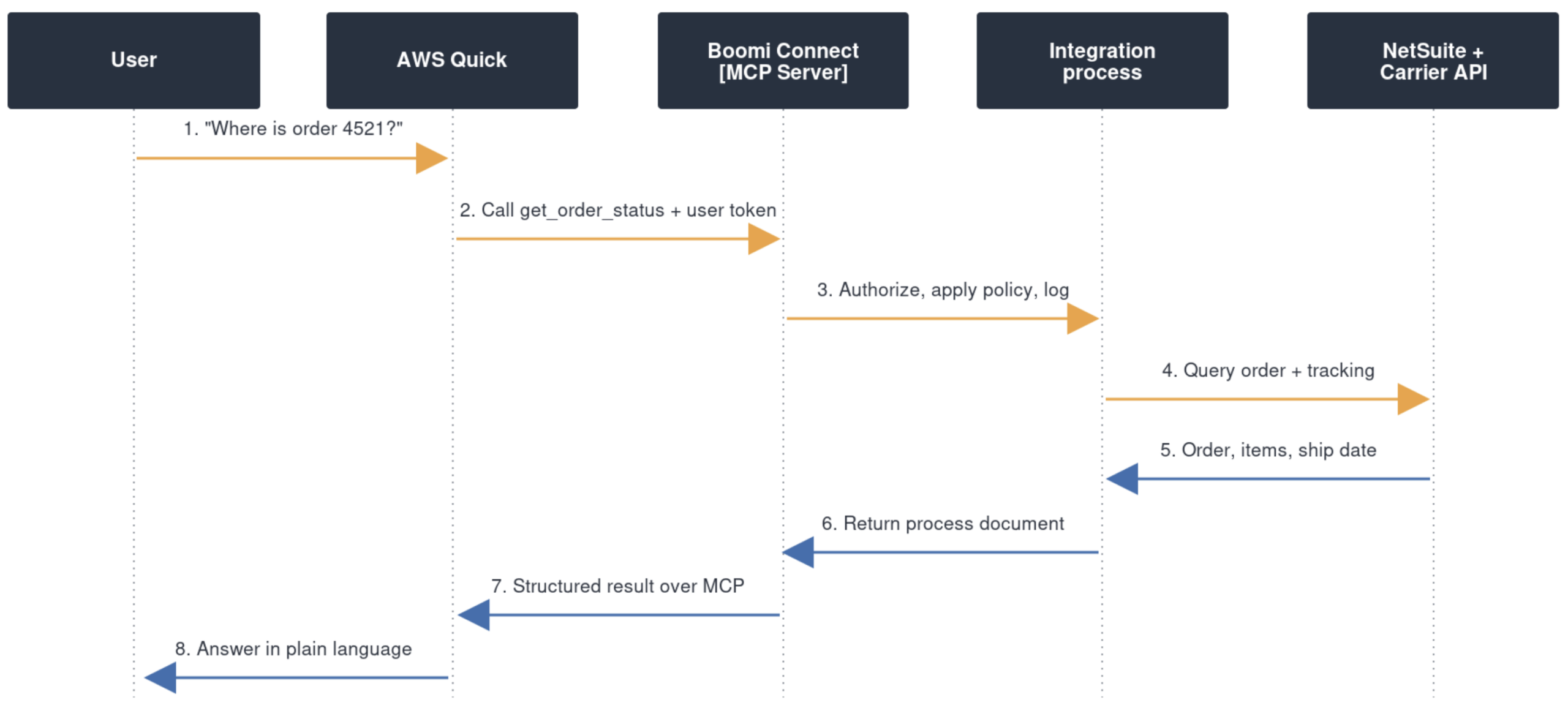
Figure 2: Request flow for the order-status example
Design a Process to Be a Good AI Tool
A process that works well as an AI tool looks different from a typical integration process. Use these guidelines:
| Guideline | Why It Matters |
| Synchronous versus asynchronous processing | Be mindful of the human-in-the-loop who may be waiting for a relatively quick response. The default mode is synchronous; the process has to fully complete before control is returned to the chat interface.
Longer-running, fire-and-forget processes should be marked as asynchronous by introducing [mcp:async] in the Notes section of the process start shape. Control is returned almost immediately back to the chat interface. |
| Small, typed inputs | An order number or customer ID is easy for the model to supply correctly. |
| One clear purpose | A tool that does one thing is easier for the model to choose correctly. |
| Bounded, concise output | Return only the needed fields, not full records. Use the Map shape to produce a concise response.
Limit list sizes. |
| Fast response | Synchronous MCP tool calls are subject to time limits. Trigger long-running workflows asynchronously. |
| Descriptive name and description | AWS Quick uses them to decide when to call the tool. Write them the way a user would ask. |
| Read-only first | Start with lookups. Add tools that change data after you’ve defined an approval model, and make them idempotent. |
| Least-privilege connections | Use connections within the process that are scoped to only what the tool needs. |
Prerequisites
- An AWS Quick subscription with permissions to add connectors
- A Boomi account with Boomi Connect enabled
- To access Boomi Connect, you need administrative privileges (ACCOUNT_ADMIN) on your Boomi account.
- Boomi connections to NetSuite and your shipping carrier
- Establish an Identity Provider (IdP) in Boomi Connect
- Follow the Using identity providers in Boomi Connect documentation to configure your IdP
Build the Integration Process – Example: Get Order Status
Complete the following steps in Boomi:
- Create a new integration process named get_order_status_NetSuite_and_carrier
- Use a No Data start step. The Order Number is passed in as input.
- Add steps that look up the order in NetSuite and the shipment in the carrier system, using your existing connections.
- Apply your business rules, for example, calculating the expected ship date and flagging delays.
- Map the result to a concise response: status, line items (limited to the first 20), expected ship date, and a delay flag.
- Test the process with a known order number, then deploy it.
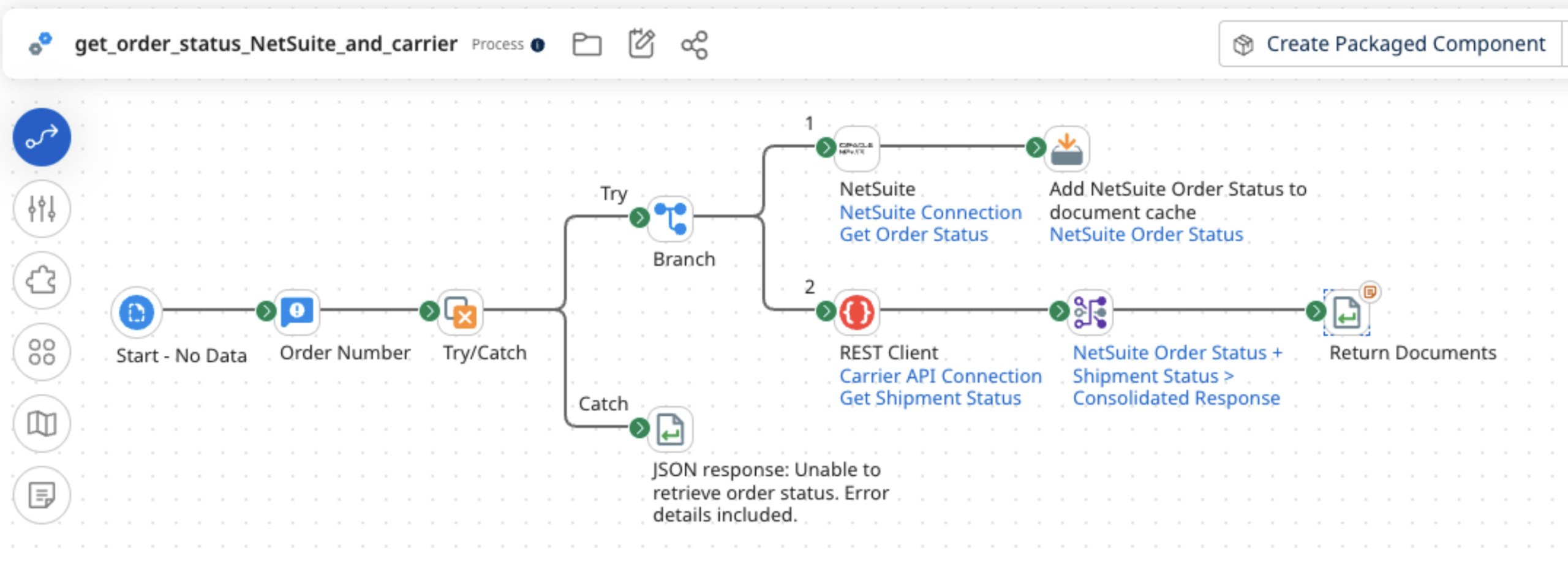
Figure 3: The Get Order Status process in Boomi
Publish the Tool Through Boomi Connect
- In Boomi Connect, configure a Boomi Integration connector.
- The configuration should point to the specific runtime where the Get Order Status process is deployed.
- Processes that are deployed to the targeted runtime can be rendered Active or Inactive.
- Copy the MCP server specifics: URL, Client ID, Client Secret.
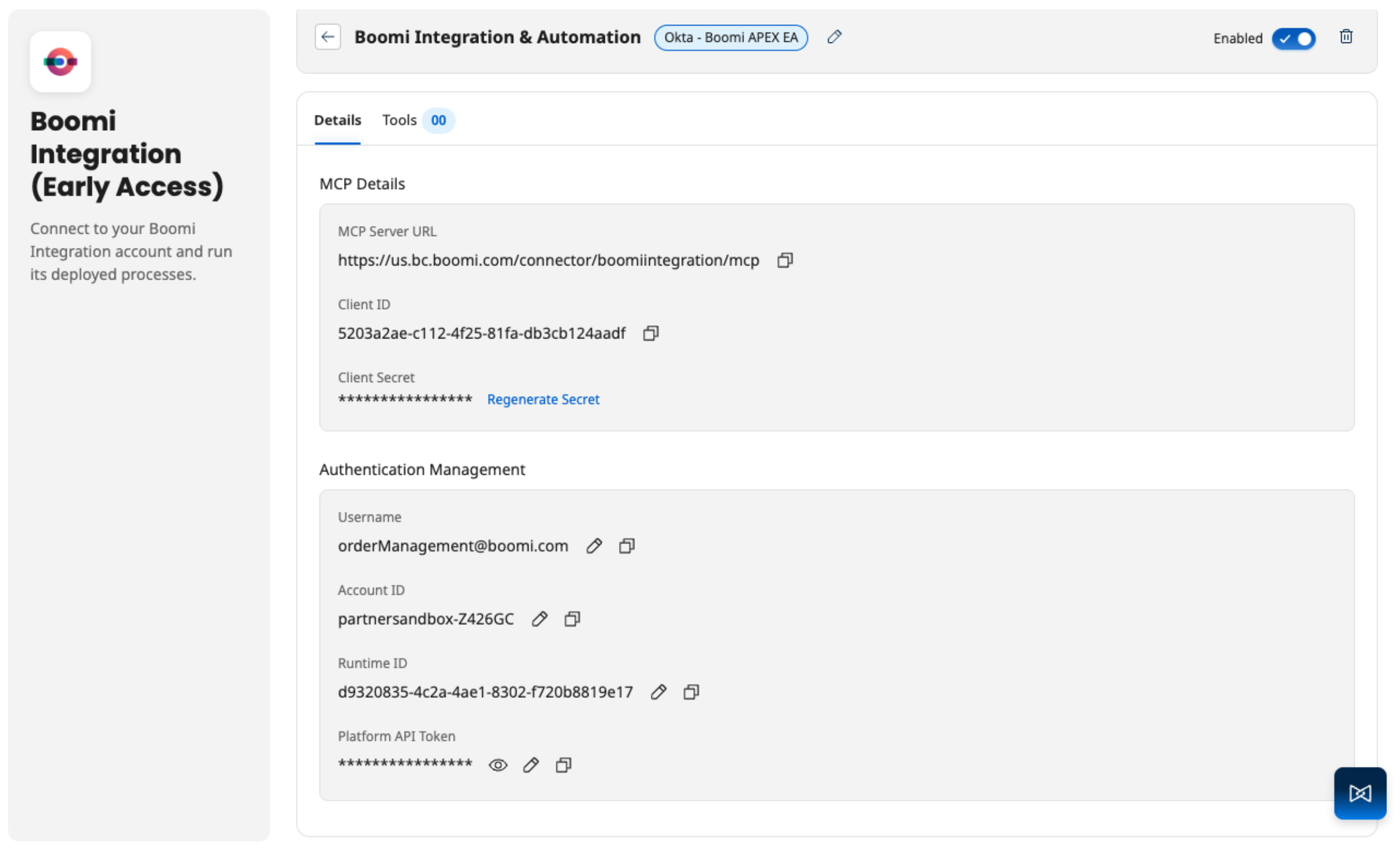
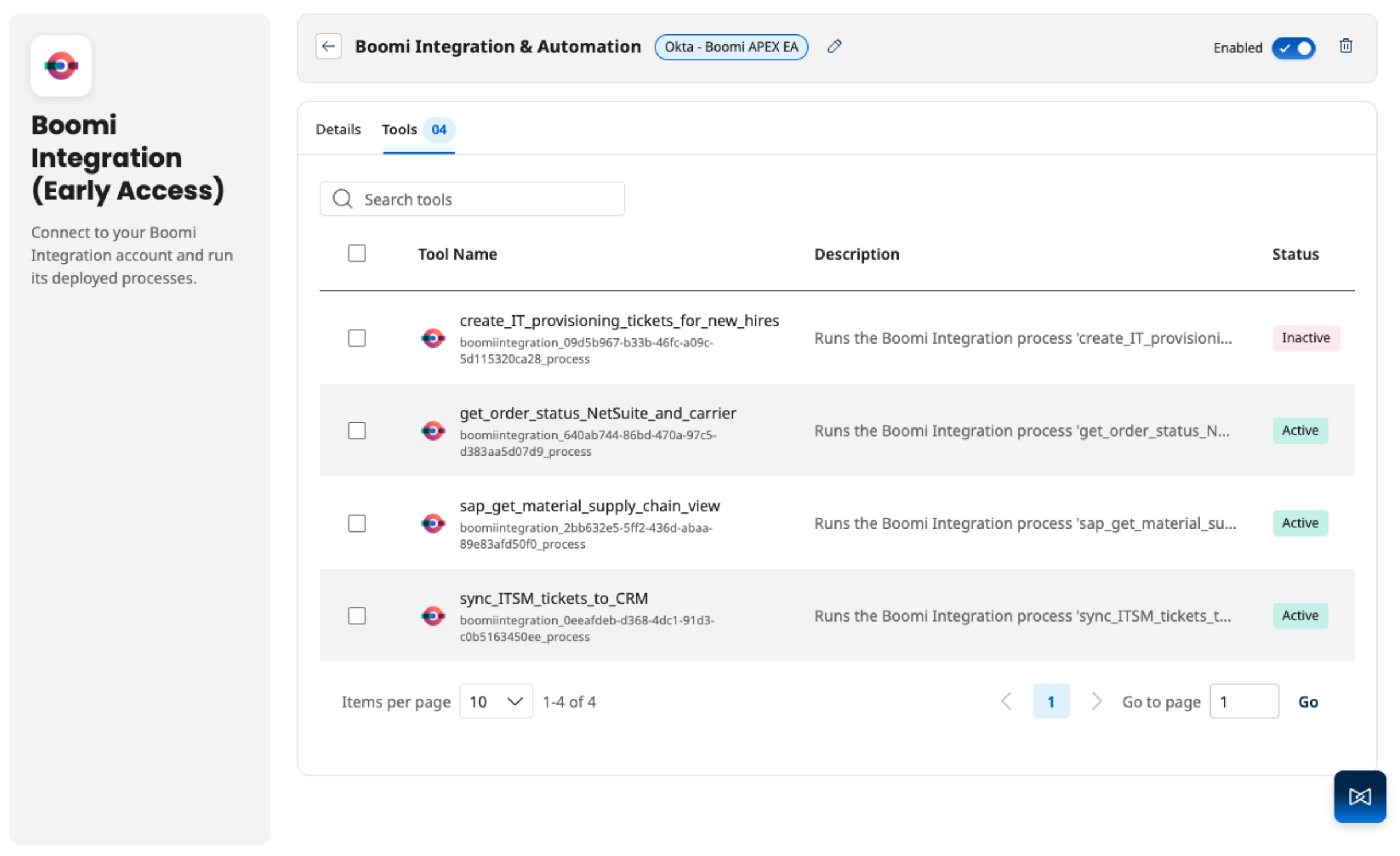
Figure 4: Boomi Integration connector configuration
Connect AWS Quick
- In AWS Quick, navigate to More > Connectors > Create for your team
- Add a Model Context Protocol connector and configure based on the details provided in the Boomi Connect – Boomi Integration connector (URL, Client ID, Client Secret).
- Authorization URL: https://us.bc.boomi.com/oauth/authorize
- Token URL: https://us.bc.boomi.com/oauth/token (Note: https://us.bc.boomi.com is the base URL for the US-region Boomi Connect instance. Other regions are expected to be added.)
- Authenticate when prompted.
- Confirm that get_order_status_NetSuite_and_carrier appears in the tool list and is active.
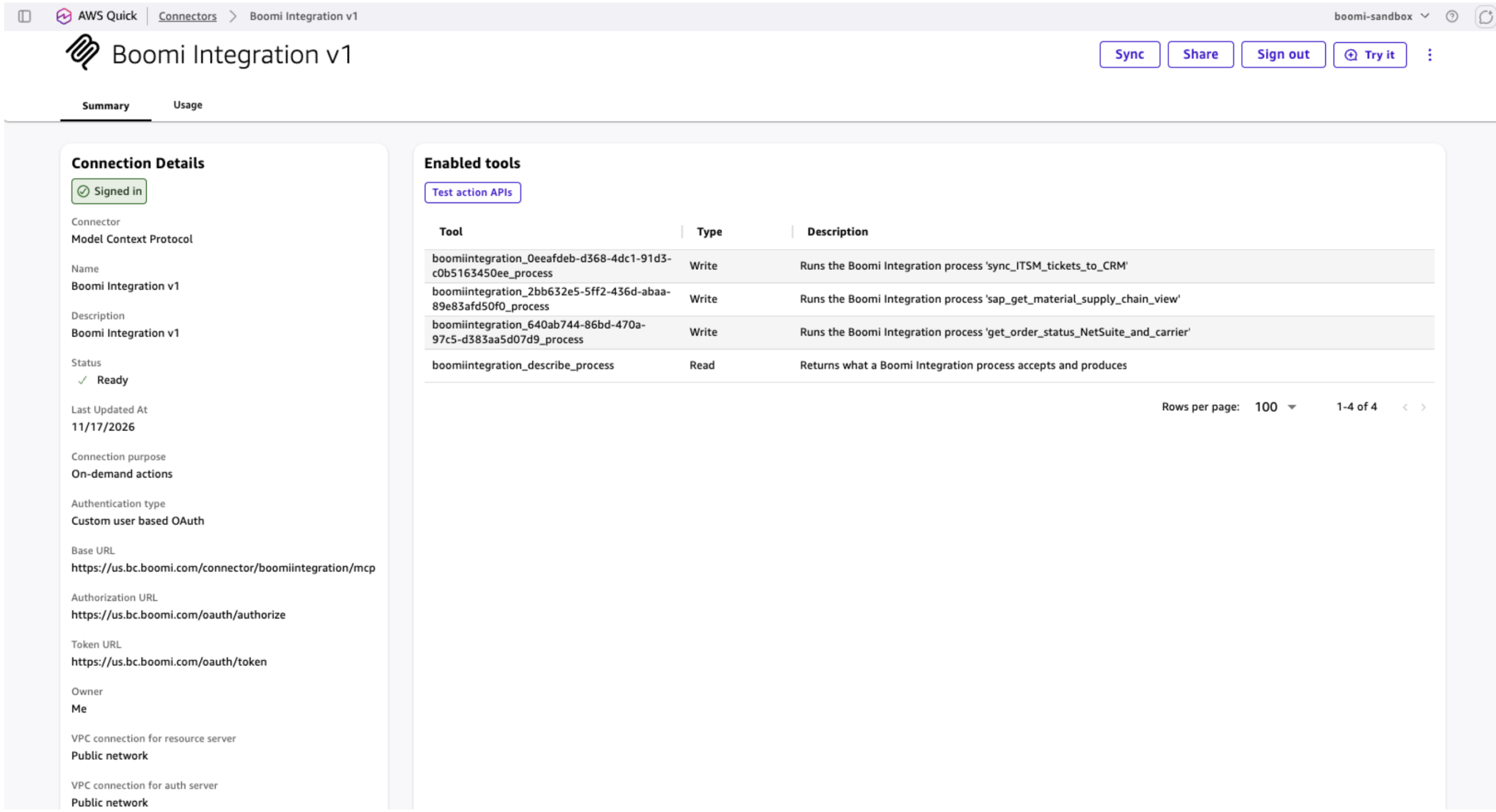
Figure 5: Boomi tools listed in AWS Quick
Test the Solution
In an AWS Quick chat, enter:
Where is order 4521, and when will it ship?
AWS Quick calls get_order_status_NetSuite_and_carrier, and Boomi returns the status, ship date, and delivery details. Follow up with “Draft an update to the customer,” and AWS Quick uses the same result without another lookup.
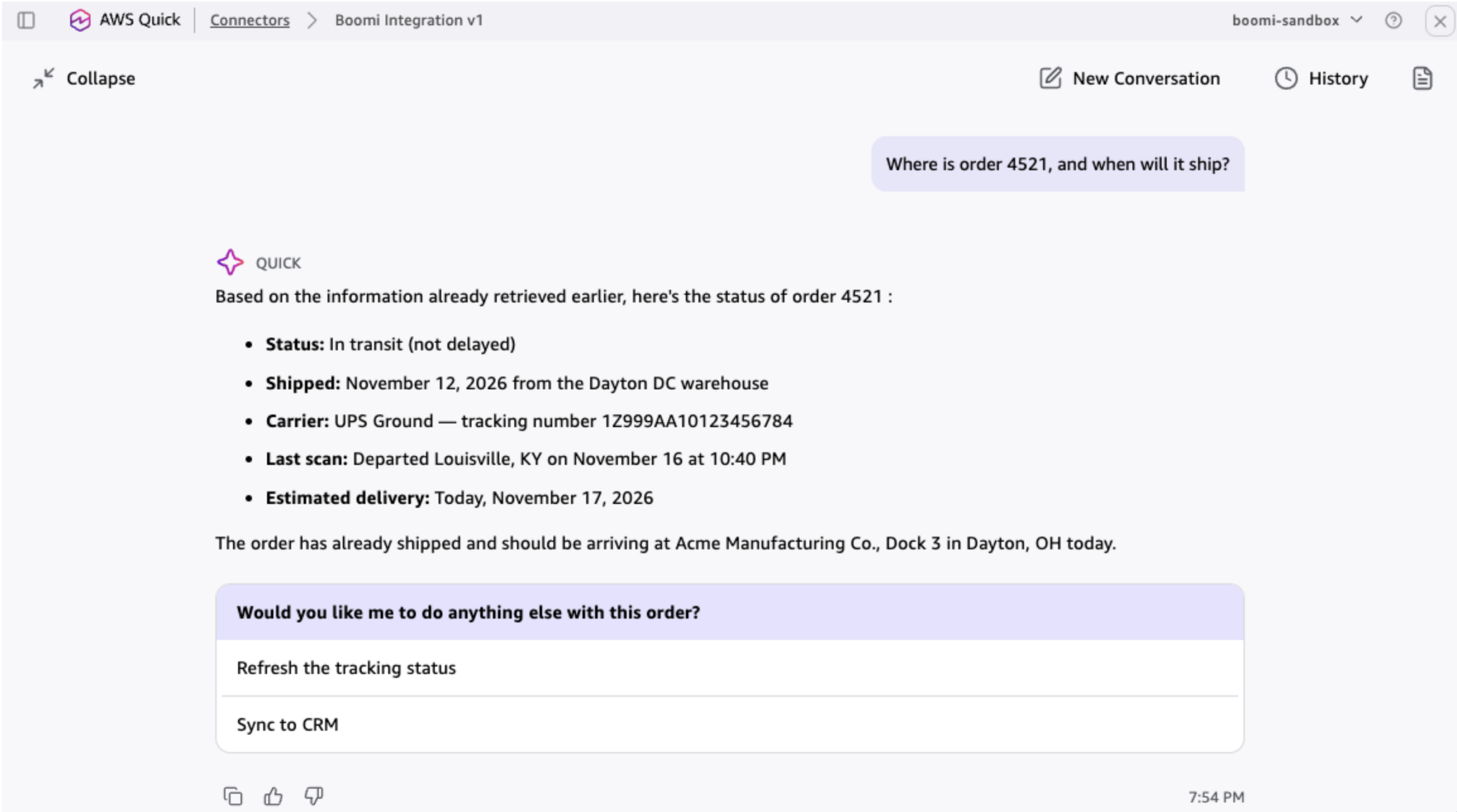
Figure 6: AWS Quick answering an order-status question
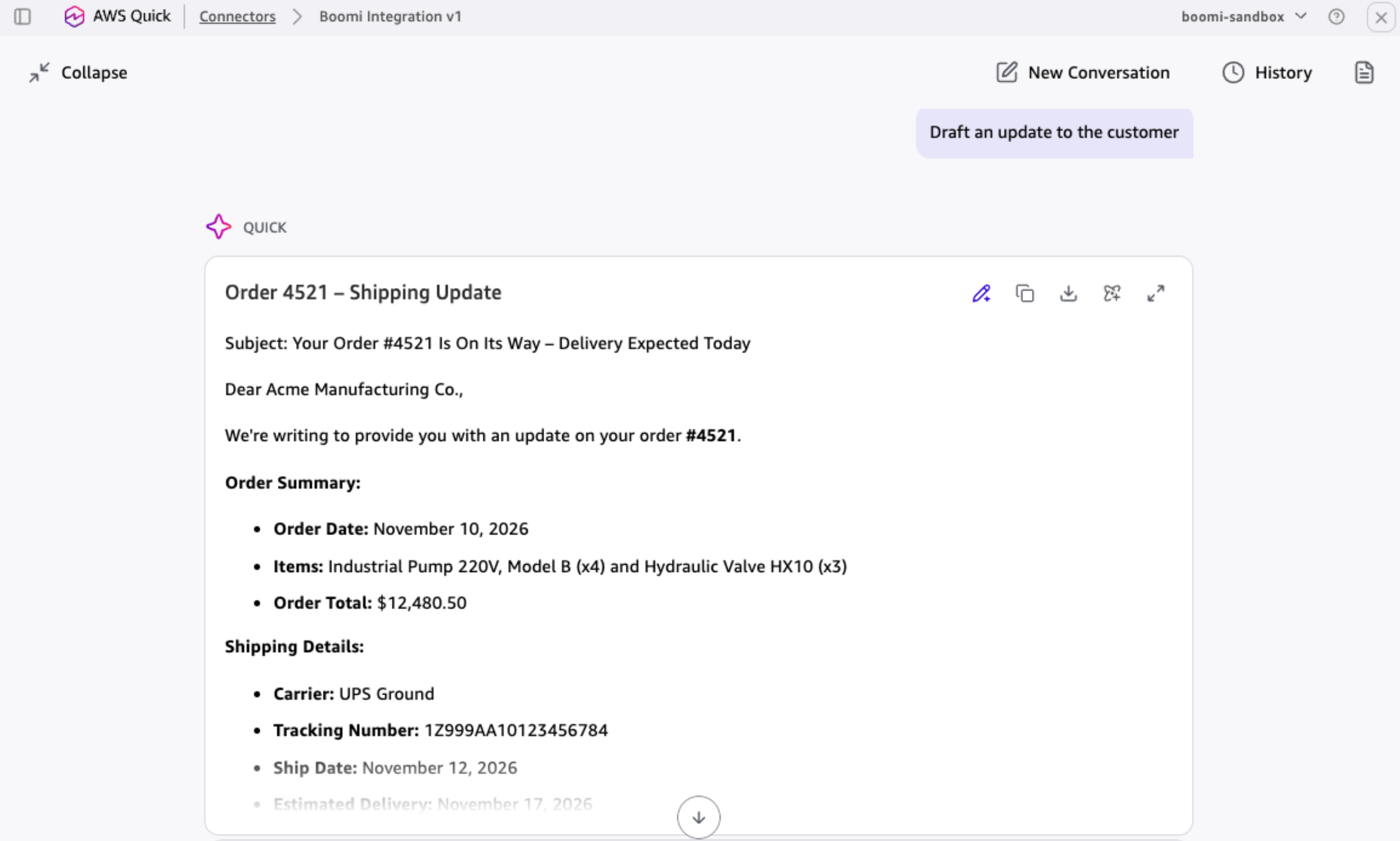
Figure 7: AWS Quick drafts a customer update.
Security and Governance
- User-scoped access. Each user authenticates with their own identity through OAuth 2.0.
- Administrator control. Only processes activated in the connector configuration become tools.
- Auditing. Calls go through Boomi Connect and are logged with other integration activity.
Conclusion
Boomi Connect gives AWS Quick governed access to your applications, and bespoke tools built in Boomi give it answers specific to your business. By designing processes for AI use, with narrow inputs, fast responses, and clear descriptions, your integration team can deliver new AI capabilities on the platform, connections, and governance they already run.
To get started, see the Boomi Integration connector documentation and AWS Quick MCP connector documentation. To learn more about Boomi on AWS, visit Boomi in AWS Marketplace.
About the Authors
Venkatesh Aravamudan is a Senior Partner Solutions Architect at AWS, where he supports and helps drive strategic co-build, co-market, and co-sell opportunities with ISV partners in the Data & AI space.
Richard Moon is a Senior Partner Solutions Architect. He has been focused on helping Boomi technology alliance partners realize high value from the Boomi Enterprise Platform for the past 14 years.